![Logo_Lumofy_EN_Main_Secondary_Horizontal.svg]](https://help.lumofy.com/hubfs/Logo_Lumofy_EN_Main_Secondary_Horizontal.svg)
Discussions
Click on  Discussions in your navigation toolbar to start discussions among your users, thus, increasing engagement. The Discussions feature facilitates social learning and peer-to-peer learning.
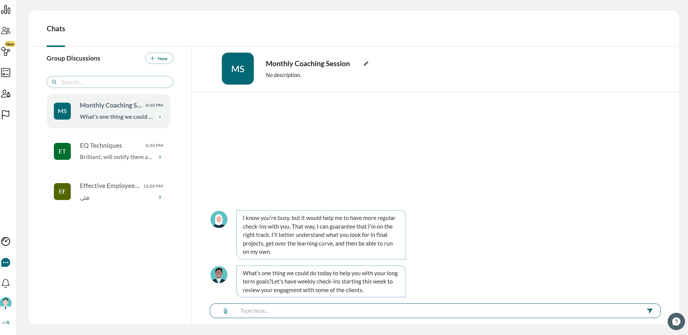
1. Creating a New Discussion Room
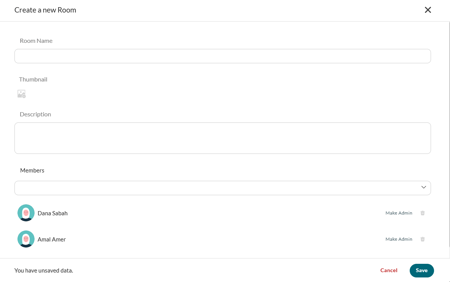
Click on Add to create a new discussion room, this will open a pop-up where you can:
-
-
Enter the room name.
-
Upload a picture for your discussion room by clicking on
 . Once uploaded you can change the picture by clicking on Update or remove the picture by clicking on Remove.
 -
Enter a Description of this discussion.
-
Select the users you would like to involve in this discussion as members from the drop-down menu or simply enter the name of the user you are searching for.
-
Click Make Admin to make the selected user the admin of the discussion room. If you wish to remove the admin authorization from a user, click on Revoke Admin.
-
Click on
 to Remove a Member from the discussion room.
 -
Click Create to reflect the changes you made or Cancel to discard changes and exit the popup.
-
2. Searching for a Discussion Room
Use the Search Bar to look for a specific discussion room by entering the name of the room in the bar.
3. Editing a Discussion Room Details
-
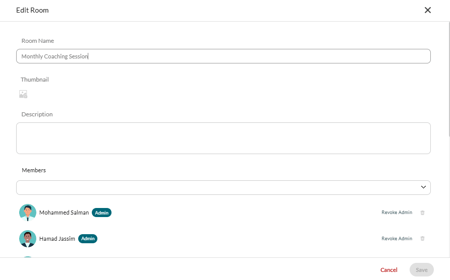
Select the discussion room you would like to edit.
-
Click on
 Edit to change the details of the discussion room you selected including its name, description, picture, members, and admins.
 -
Enter the new title and/or description.
-
Change the picture by clicking on Update or remove the picture by clicking on Remove.
-
Select the users you would like to add in this discussion as members from the drop-down menu or simply enter the name of the user you are searching for.
-
Click Make Admin to make the selected user the admin of the discussion room. If you wish to remove the admin authorization from a user, click on Revoke Admin.
- Click onto Remove a Member from the discussion room.
-
Click Update to reflect the changes you made or Cancel to discard changes and exit the popup.
4. Sending Messages
-
-
Click on Type here... to enter the text of the message you would like to send.
-
Click
 Attach to send a
  Photo, a
  Video, or a
  Document as an attachment to your message.
 -
Click
 Send or hit Enter on your keyboard to send the message successfully.
 -
Click
 Reply to reply to a specific received message.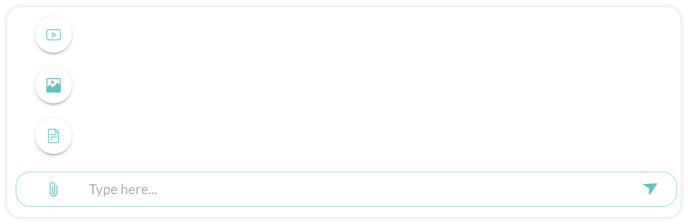
-