---
title: Get community meaningful conversations started
description: Click on Chats in your navigation toolbar to start conversations with other learners. The Discussions feature facilitates social learning and peer learning. Click onAdd to create a new discussion roo
---
[Skip to content](https://help.lumofy.com/migration/engage#main-content)
- [English](https://help.lumofy.com/migration/engage)
- [العربية - مصر](https://help.lumofy.com/migration/ar-eg/مناقشات-المنصة-تواصُل-واستفادة-للجميع)
English
Show submenu for translations
![Logo\_Lumofy\_EN\_Main\_Secondary\_Horizontal.svg\]](https://help.lumofy.com/hubfs/Logo_Lumofy_EN_Main_Secondary_Horizontal.svg)
- Home
- Products
- Pricing
- Blog
- Company
Open main navigation
Close main navigation
- Home
- Products
- Pricing
- Blog
- Company
- - [English](https://help.lumofy.com/migration/engage)
- [العربية - مصر](https://help.lumofy.com/migration/ar-eg/مناقشات-المنصة-تواصُل-واستفادة-للجميع)
English
Show submenu for translations
- Go to lumofy.ai
Go to lumofy.ai
Hello. How can we help you?
- There are no suggestions because the search field is empty.
1. [Help Center](https://help.lumofy.com/migration?hsLang=en)
2. [Lumofy For Learners](https://help.lumofy.com/migration/lumofy-for-learners?hsLang=en)
3. [Discussions](https://help.lumofy.com/migration/lumofy-for-learners?hsLang=en#discussions)
# Get community meaningful conversations started
### **Chats**
Click on **Chats** in your navigation toolbar to start conversations with other learners. The Discussions feature facilitates social learning and peer learning.
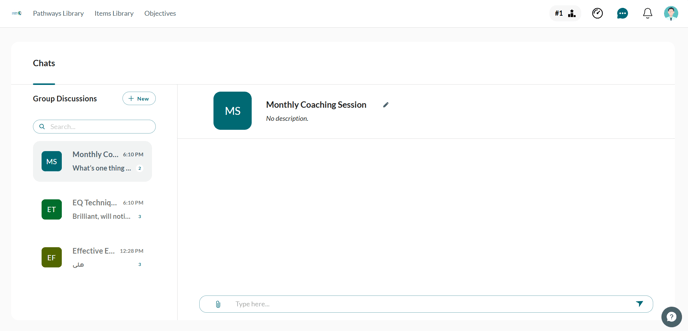
#### 1. **Creating a New Discussion Room**
Click on**Add** to create a new discussion room, this will open a pop-up where you can:
1. 1. **Enter the room name.**
2. **Upload** **a** **picture** for your discussion room by clicking on . Once uploaded you can change the picture by clicking on **Update** or remove the picture by clicking on **Remove.**
3. Enter a **Description** of this discussion.
4. **Choose the users** you would like to involve in this discussion as members from the drop-down menu or simply enter the name of the user you are searching for.
5. Click **Make Admin** to make the selected user the admin of the discussion room. If you wish to remove the admin authorization from a user, click on **Revoke Admin.**
6. Click onto **Remove a Member** from the discussion room.
7. Click **Create** to reflect the changes you made or **Cancel** to discard changes and exit the popup.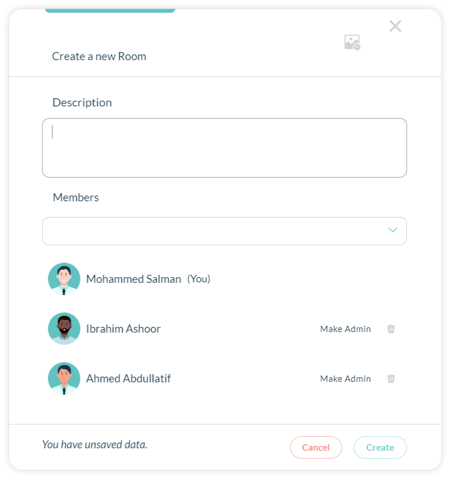
#### 2. Searching for a **Discussion Room**
Use the**Search Bar** to look for a specific discussion room by entering the name of the room in the bar.
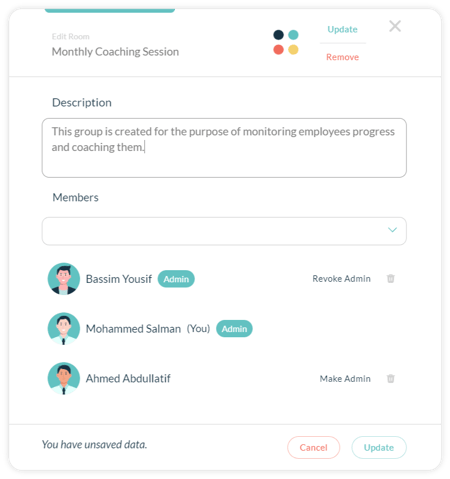
#### 3. Editing a **Discussion Room Details**
1. Select the discussion room you would like to edit.
2. Click on **Edit** to change the details of the discussion room you selected including its name, description, picture, members, and admins.
3. Enter the new title and or description.
4. Change the picture by clicking on **Update** or remove the picture by clicking on **Remove**.
5. **Choose the users** you would like to add in this discussion as members from the drop-down menu or simply enter the name of the user you are searching for.
6. Click **Make Admin** to make the selected user as the admin of the discussion room. If you wish to remove the admin authorization from a user, click on **Revoke Admin.**
7. Click onto **Remove a Member** from the discussion room.
8. Click **Update** to reflect the changes you made or **Cancel** to discard changes and exit the pop-up.
#### 4. Sending Messages
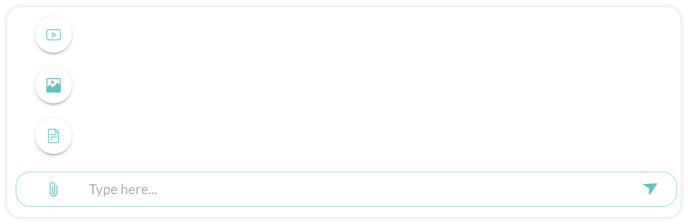
1. 1. Click on **Type here...** to enter the text of the message you would like to send.
2. Click**Attach** to send a **Photo,** **a  Video, or a Document** as an attachment to your message.
3. Click **Send** or hit **Enter** on your keyboardto send the message successfully.
4. Click **Reply** to reply to a specific received message.
#### Watch this tutorial video to learn more
- [Getting Started with Lumofy](https://help.lumofy.com/migration/getting-started-with-lumofy?hsLang=en#main-content)
- [Onboarding On Lumofy](https://help.lumofy.com/migration/getting-started-with-lumofy?hsLang=en#onboarding-on-lumofy)
- [How to get help with Lumofy](https://help.lumofy.com/migration/getting-started-with-lumofy?hsLang=en#how-to-get-help-with-lumofy)
- [Lumofy For Admins](https://help.lumofy.com/migration/lumofy-for-admins?hsLang=en#main-content)
- [Admin Navigation Toolbar](https://help.lumofy.com/migration/lumofy-for-admins?hsLang=en#admin-navigation-toolbar)
- [Insights Dashboard](https://help.lumofy.com/migration/lumofy-for-admins?hsLang=en#insights-dashboard)
- [Admin](https://help.lumofy.com/migration/lumofy-for-admins?hsLang=en#admin)
- [Map](https://help.lumofy.com/migration/lumofy-for-admins?hsLang=en#map)
- [Assess](https://help.lumofy.com/migration/lumofy-for-admins?hsLang=en#assess)
- [Author](https://help.lumofy.com/migration/lumofy-for-admins?hsLang=en#author)
- [Disscussions](https://help.lumofy.com/migration/lumofy-for-admins?hsLang=en#disscussions)
- [Notifications](https://help.lumofy.com/migration/lumofy-for-admins?hsLang=en#notifications)
- [Lumofy For Learners](https://help.lumofy.com/migration/lumofy-for-learners?hsLang=en#main-content)
- [Learner Navigation Toolbar](https://help.lumofy.com/migration/lumofy-for-learners?hsLang=en#learner-navigation-toolbar)
- [Dashboard](https://help.lumofy.com/migration/lumofy-for-learners?hsLang=en#dashboard)
- [Items Library](https://help.lumofy.com/migration/lumofy-for-learners?hsLang=en#items-library)
- [Paths Library](https://help.lumofy.com/migration/lumofy-for-learners?hsLang=en#paths-library)
- [Assessments Library](https://help.lumofy.com/migration/lumofy-for-learners?hsLang=en#assessments-library)
- [Leaderboard](https://help.lumofy.com/migration/lumofy-for-learners?hsLang=en#leaderboard)
- [Discussions](https://help.lumofy.com/migration/lumofy-for-learners?hsLang=en#discussions)
- [Notifications](https://help.lumofy.com/migration/lumofy-for-learners?hsLang=en#notifications)
- [Settings](https://help.lumofy.com/migration/lumofy-for-learners?hsLang=en#settings)
- [Profile](https://help.lumofy.com/migration/lumofy-for-learners?hsLang=en#profile)
- Home
- Products
- Pricing
- Blog
- Company
[](http://www.lumofy.com)
Help Center
Copyright © 2026, Lumofy