---
title: How to Navigate Lumofy's Pathways Library
description: How to Navigate Lumofy's Pathways Library
---
[Skip to content](https://help.lumofy.com/migration/how-to-navigate-lumofy-learning-paths-library-1#main-content)
English
Show submenu for translations
![Logo\_Lumofy\_EN\_Main\_Secondary\_Horizontal.svg\]](https://help.lumofy.com/hubfs/Logo_Lumofy_EN_Main_Secondary_Horizontal.svg)
- Home
- Products
- Pricing
- Blog
- Company
Open main navigation
Close main navigation
- Home
- Products
- Pricing
- Blog
- Company
- English
Show submenu for translations
- Go to lumofy.ai
Go to lumofy.ai
Hello. How can we help you?
- There are no suggestions because the search field is empty.
1. [Help Center](https://help.lumofy.com/migration?hsLang=en)
2. [Lumofy For Learners](https://help.lumofy.com/migration/lumofy-for-learners?hsLang=en)
3. [Paths Library](https://help.lumofy.com/migration/lumofy-for-learners?hsLang=en#paths-library)
# How to Navigate Lumofy's Pathways Library
### Pathways Library
Click on **Pathways Library** to Access the Lumofy learning pathways Library which encompasses all the personalized content relating to your job role. This is where you will start your learning journey. A learning pathway is a selection of courses tied together for you to progress through and master a particular subject.
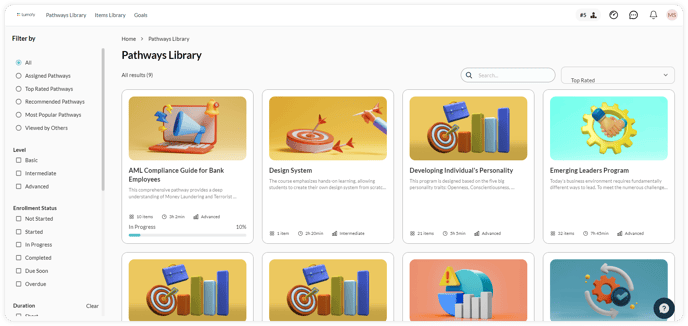
#### 1. Search Bar
To search for any learning path, click on the**Search Bar** and enter the name of the learning pathways you are looking for.

#### 2. Pathways Main Categories
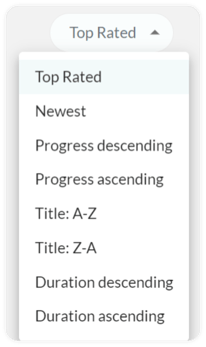
Use the drop-down tab (**Top Rated, Newest, Progress Descending, Progress Ascending, Title A-Z, Title Z-A, Duration Descending, Duration Ascending**) to filter through the pathways.
#### 3. Filter By
Scroll down **Filter By**, where a set of additional criteria will appear for you to filter by:
1. Pathways (All, assigned pathways, recommended pathways, most popular pathways, viewed by others)
2. Level (Basic, intermediate, advanced)
3. Competencies (Ethics, decision-making, change management)
4. Enrollment Status (Enrolled, not started, in progress, completed, overdue, and due soon)
5. Duration (Short, medium, long, very long)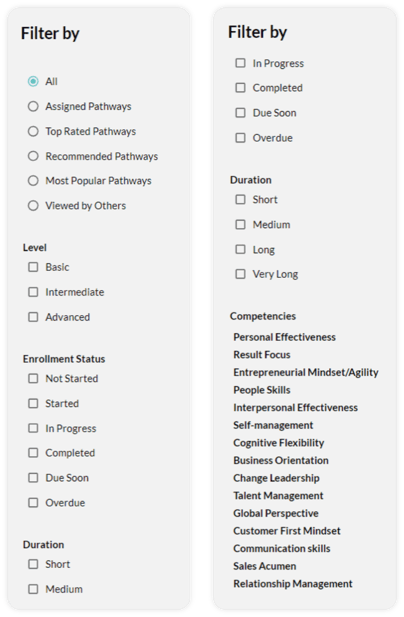
#### 4. Learning Pathways Page
Explore a list of learning pathways that may be of interest to you. To view more information related to a specific item, click anywhere on the learning pathway box.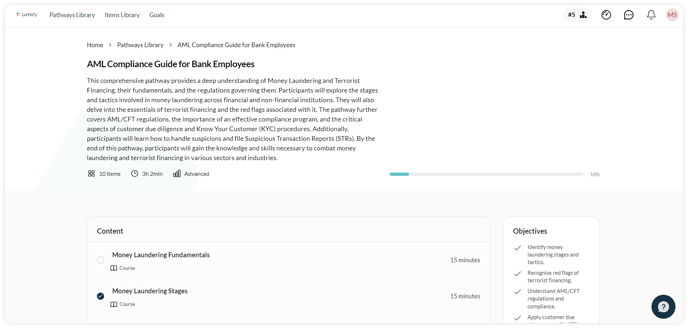
Once you open a learning pathways page you'll be able to:
1. Preview the path's details; the**Description**, **Objectives**, **Duration**, **Level, Linked Competencies** and **Tags**.
2. Preview the **Content** section which contains:
1. A progress bar indicating your progress percentage in this pathways to help you Keep track of your learning progress.
2. A list of all learning items, included under the selected learning path. By clicking on a specific learning item, you will be able to see the **Selected Item Details** on the right.
3. To Start the next learning item simply hover over it and click the action button (**Start** or **Resume**).
3. Preview the **Selected Item Details** section which contains:
1. The item's **Language, Level, Duration, Type, Description**, and **Objectives**.
2. Select the desired language then click on the action button (**Start**, **Resume**, or **Open**) to start or resume learning or to open an item you already completed.
3. After you have successfully completed an item, you can click on **Open Certificate** to preview, print, or download your certificate.
(Insert Screenshot)
4. Click on **View in New Page** to open the item's full details page.
**Note:** Some learning items have restricted access. to request access to these items from your HR representative or Admin, Click **Request Access**. the action button status will change to **Access Pending** while your access request is being processed. once the access is granted the button status will change to **Request Approved**. in case your request is rejected the button status will change to **Access Rejected.**
- [Getting Started with Lumofy](https://help.lumofy.com/migration/getting-started-with-lumofy?hsLang=en#main-content)
- [Onboarding On Lumofy](https://help.lumofy.com/migration/getting-started-with-lumofy?hsLang=en#onboarding-on-lumofy)
- [How to get help with Lumofy](https://help.lumofy.com/migration/getting-started-with-lumofy?hsLang=en#how-to-get-help-with-lumofy)
- [Lumofy For Admins](https://help.lumofy.com/migration/lumofy-for-admins?hsLang=en#main-content)
- [Admin Navigation Toolbar](https://help.lumofy.com/migration/lumofy-for-admins?hsLang=en#admin-navigation-toolbar)
- [Insights Dashboard](https://help.lumofy.com/migration/lumofy-for-admins?hsLang=en#insights-dashboard)
- [Admin](https://help.lumofy.com/migration/lumofy-for-admins?hsLang=en#admin)
- [Map](https://help.lumofy.com/migration/lumofy-for-admins?hsLang=en#map)
- [Assess](https://help.lumofy.com/migration/lumofy-for-admins?hsLang=en#assess)
- [Author](https://help.lumofy.com/migration/lumofy-for-admins?hsLang=en#author)
- [Disscussions](https://help.lumofy.com/migration/lumofy-for-admins?hsLang=en#disscussions)
- [Notifications](https://help.lumofy.com/migration/lumofy-for-admins?hsLang=en#notifications)
- [Lumofy For Learners](https://help.lumofy.com/migration/lumofy-for-learners?hsLang=en#main-content)
- [Learner Navigation Toolbar](https://help.lumofy.com/migration/lumofy-for-learners?hsLang=en#learner-navigation-toolbar)
- [Dashboard](https://help.lumofy.com/migration/lumofy-for-learners?hsLang=en#dashboard)
- [Items Library](https://help.lumofy.com/migration/lumofy-for-learners?hsLang=en#items-library)
- [Paths Library](https://help.lumofy.com/migration/lumofy-for-learners?hsLang=en#paths-library)
- [Assessments Library](https://help.lumofy.com/migration/lumofy-for-learners?hsLang=en#assessments-library)
- [Leaderboard](https://help.lumofy.com/migration/lumofy-for-learners?hsLang=en#leaderboard)
- [Discussions](https://help.lumofy.com/migration/lumofy-for-learners?hsLang=en#discussions)
- [Notifications](https://help.lumofy.com/migration/lumofy-for-learners?hsLang=en#notifications)
- [Settings](https://help.lumofy.com/migration/lumofy-for-learners?hsLang=en#settings)
- [Profile](https://help.lumofy.com/migration/lumofy-for-learners?hsLang=en#profile)
- Home
- Products
- Pricing
- Blog
- Company
[](http://www.lumofy.com)
Help Center
Copyright © 2026, Lumofy