---
title: Manage Quizzes
description: If you wish to create your own quizzes and assign them to your users, Click on Assess in your navigation toolbar. Click on theQuizzes button to view a list of all quizzes that are available to you and
---
[Skip to content](https://help.lumofy.com/migration/manage-quizzes#main-content)
English
Show submenu for translations
![Logo\_Lumofy\_EN\_Main\_Secondary\_Horizontal.svg\]](https://help.lumofy.com/hubfs/Logo_Lumofy_EN_Main_Secondary_Horizontal.svg)
- Home
- Products
- Pricing
- Blog
- Company
Open main navigation
Close main navigation
- Home
- Products
- Pricing
- Blog
- Company
- English
Show submenu for translations
- Go to lumofy.ai
Go to lumofy.ai
Hello. How can we help you?
- There are no suggestions because the search field is empty.
1. [Help Center](https://help.lumofy.com/migration?hsLang=en)
2. [Lumofy For Admins](https://help.lumofy.com/migration/lumofy-for-admins?hsLang=en)
3. [Assess](https://help.lumofy.com/migration/lumofy-for-admins?hsLang=en#assess)
# Manage Quizzes
### Quizzes
If you wish to create your own quizzes and assign them to your users, Click on **Assess** in your navigation toolbar.
Click on the**Quizzes** button to view a list of all quizzes that are available to you and your users, their **Category**, the number of users' **Enrollments** and the **Enrollments Completion.**
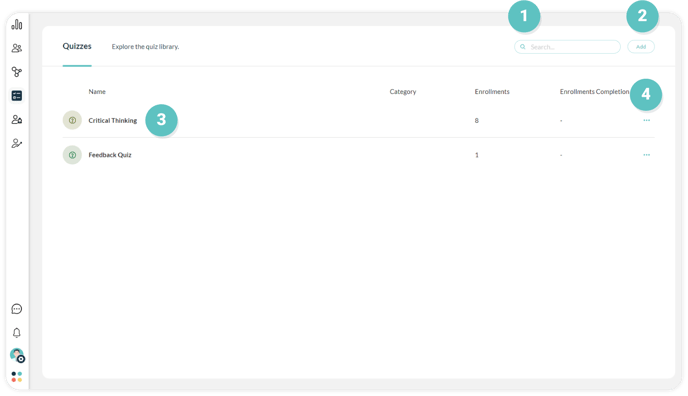
#### **1. Search Bar**
To search for any specific quiz, use the**Search Bar** and enter the name of the quiz you are looking for.
#### 2. **Creating A New Quiz**
To customize and create a new quiz, click on **Add** in the upper right corner and follow the below steps to perform this action successfully:
1. 1. Enter the quiz **Name**
2. Provide a **Description** for the quiz you are creating
3. Apply a **Passing Score** for the quiz
4. Select the **maximum number of attempts**
5. Check the box of **Users can navigate in questions forwards and backwards freely** to enable the user to skip to the next question or go back to the previous question without providing a final answer.
6. Check the box of **Questions will be corrected individually one at a time** to reveal the score after each question is answered rather than waiting for the end of the quiz.
7. Check the box of **Show users the evaluation of questions** to reveal if the user answered correctly or not.
8. Click **Add Version** to add English or Arabic content.
9. Click **Remove** to delete a language version.
10. Click **Save** to publish the quiz or **Cancel** to discard your data.
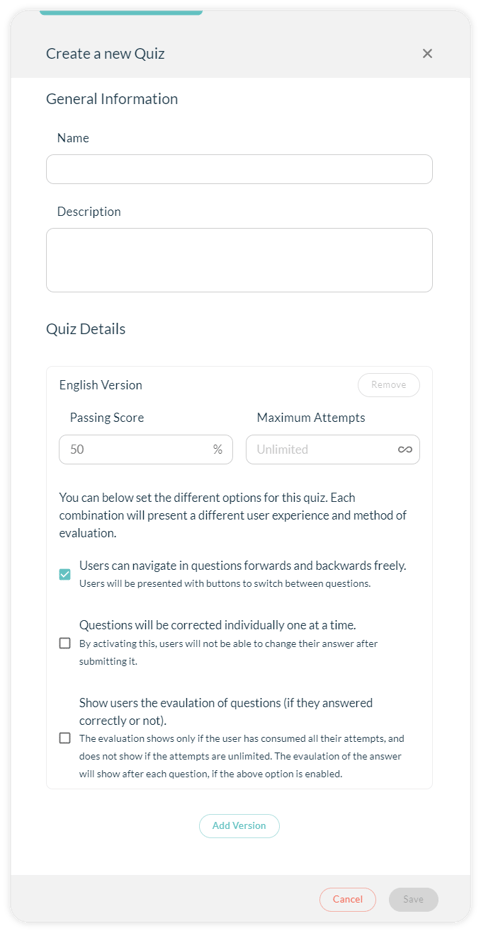
**Note**: Quizzes must have at least one language version (English or Arabic).
#### 3. **Quiz Page**
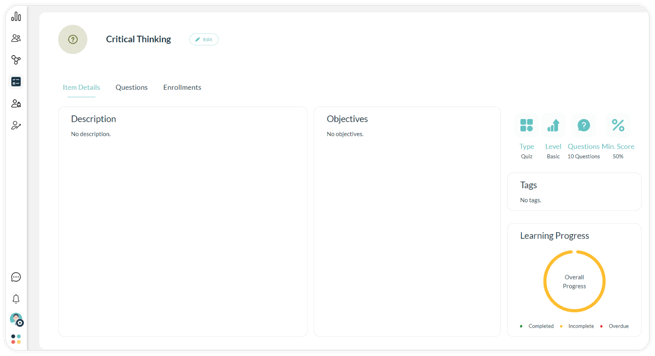
Click on any quiz to open the quiz page where you can **Edit** it, and view three tabs, **Item Details, Questions,** and **Enrollments**.
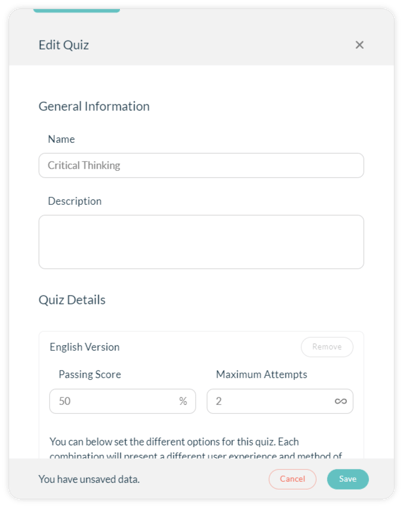
#### 3.1 **Edit**
1. Click **Edit** to change the quiz details including its description, passing score, the maximum number of attempts, method of user navigation of the quiz, and correction preferences.
2. Click **Update** to reflect the changes you made.
3. Click **Cancel** to discard changes and exit the tab.
#### 3.2 **Item Details**
View the quiz's **Description**, **Objectives**, **Questions**, **Minimum Score**, **Tags**, and **Learning Progress** status (completed, incomplete, or overdue).
#### 3.2 **Questions**
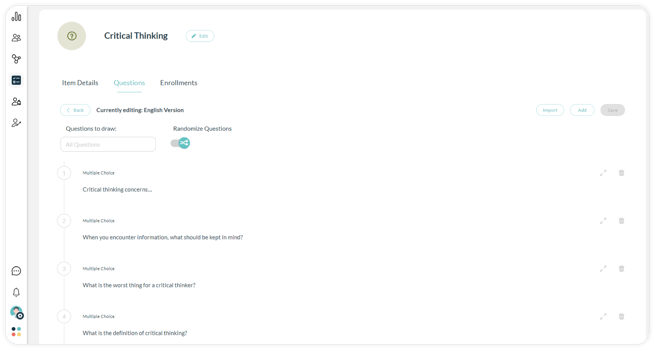
1. Choose the language version you want to edit (**English** or **Arabic**)
2. Click on **Import** to upload your quiz content.
1. Click on **Download Template** to see an example of how the data should be organized in your excel sheet.
2. Click on **Choose File** to upload your quiz content to the platform.
3. Click **Add** to select the types of questions you want to add to your quiz (Multiple Choice, True or False, or Fill in the Blank):
1. Click**Expand** to edit the question title and the set of answers.
2. Click **Add Image** to add an image to the selected question.
3. Click **Delete** to delete the question.
4. Click **Save** to reflect all the changes you made.
5. If you selected the question to be a multiple choice, toggle on **Choices Are Randomized** switch to make the answers appear in a random arrangement for every quiz taker. Toggle it off, if you would like the choices to appear in the same order entered for all quiz takers.
#### 3.3 **Enrollments**
Here, you can view all users enrolled in the quiz you selected with other information like **Status, Score,** **Assigned At, Due Date,** and **Completed At**.
1. Use the**Search Bar** to search enrollments.
2. Filter enrollments using the **Team** and **Job Role** filters.
3. Click **Actions** to perform the following actions:
1. Click**Enroll Users** toenroll one or more users to the quiz.
2. Click**Update Due Date** to change the due date of the quiz.
3. Click **Export** to download an excel sheet of all enrollments.
4. Click the **Options Menu** to perform these actions:
1. 1. **View Attempts:** to see a list of all quiz attempts of this user.
2. **Delete:** to remove the user from the enrollments list.
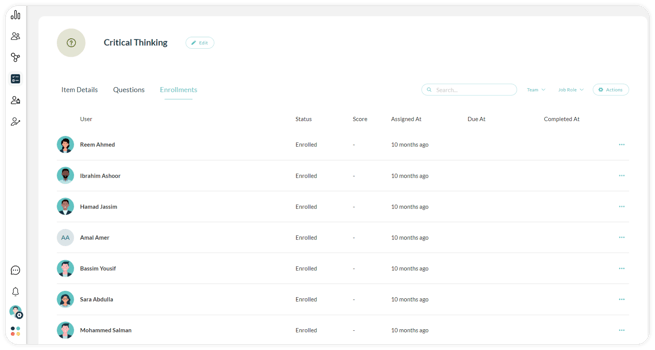
**Note**: you can **Allow user to retry the last attempt** from the **View Attempts** popup.
#### 4. **More Quiz Actions**
Click on the**Options Menu** next to any quiz to perform the following actions:
1. Click **Preview** to be presented with what your user will see when attempting the selected quiz.
2. Click **Edit** to revise general information pertaining to the selected quiz, then click **Update** to save changes or **Cancel** to discard changes and exit the tap. you'll be able to edit:
1. The description
2. Passing score, you wish your users to achieve
3. The number of maximum attempts each user is allowed
4. Method of user navigation of the quiz
5. Correction preferences
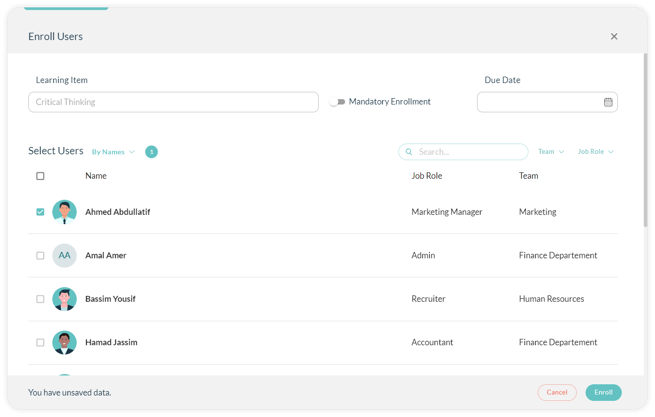
3. Click **Enroll Users** to assign users to this quiz following these steps:
1. Turn on the **Mandatory Enrollment** switch if the quiz is compulsory and turn it off if it’s optional.
2. Select the quiz **Due** **Date** by which the users are required to complete the quiz.
3. Click Select All to enroll all your users to the chosen quiz or select particular users you wish to assign the quiz to from the list by checking the box next to their name.
4. Use the **Search Bar** and enter the name of the user or **Filter** the list of users by **Team** and **Job Role**.
5. Click **Enroll** to complete the enrollment action successfully and for the users to get notified about being assigned to a new quiz.
6. Click **Cancel** to exit the enrolling popup.
- [Getting Started with Lumofy](https://help.lumofy.com/migration/getting-started-with-lumofy?hsLang=en#main-content)
- [Onboarding On Lumofy](https://help.lumofy.com/migration/getting-started-with-lumofy?hsLang=en#onboarding-on-lumofy)
- [How to get help with Lumofy](https://help.lumofy.com/migration/getting-started-with-lumofy?hsLang=en#how-to-get-help-with-lumofy)
- [Lumofy For Admins](https://help.lumofy.com/migration/lumofy-for-admins?hsLang=en#main-content)
- [Admin Navigation Toolbar](https://help.lumofy.com/migration/lumofy-for-admins?hsLang=en#admin-navigation-toolbar)
- [Insights Dashboard](https://help.lumofy.com/migration/lumofy-for-admins?hsLang=en#insights-dashboard)
- [Admin](https://help.lumofy.com/migration/lumofy-for-admins?hsLang=en#admin)
- [Map](https://help.lumofy.com/migration/lumofy-for-admins?hsLang=en#map)
- [Assess](https://help.lumofy.com/migration/lumofy-for-admins?hsLang=en#assess)
- [Author](https://help.lumofy.com/migration/lumofy-for-admins?hsLang=en#author)
- [Disscussions](https://help.lumofy.com/migration/lumofy-for-admins?hsLang=en#disscussions)
- [Notifications](https://help.lumofy.com/migration/lumofy-for-admins?hsLang=en#notifications)
- [Lumofy For Learners](https://help.lumofy.com/migration/lumofy-for-learners?hsLang=en#main-content)
- [Learner Navigation Toolbar](https://help.lumofy.com/migration/lumofy-for-learners?hsLang=en#learner-navigation-toolbar)
- [Dashboard](https://help.lumofy.com/migration/lumofy-for-learners?hsLang=en#dashboard)
- [Items Library](https://help.lumofy.com/migration/lumofy-for-learners?hsLang=en#items-library)
- [Paths Library](https://help.lumofy.com/migration/lumofy-for-learners?hsLang=en#paths-library)
- [Assessments Library](https://help.lumofy.com/migration/lumofy-for-learners?hsLang=en#assessments-library)
- [Leaderboard](https://help.lumofy.com/migration/lumofy-for-learners?hsLang=en#leaderboard)
- [Discussions](https://help.lumofy.com/migration/lumofy-for-learners?hsLang=en#discussions)
- [Notifications](https://help.lumofy.com/migration/lumofy-for-learners?hsLang=en#notifications)
- [Settings](https://help.lumofy.com/migration/lumofy-for-learners?hsLang=en#settings)
- [Profile](https://help.lumofy.com/migration/lumofy-for-learners?hsLang=en#profile)
- Home
- Products
- Pricing
- Blog
- Company
[](http://www.lumofy.com)
Help Center
Copyright © 2026, Lumofy