---
title: Manage Talent Assessments
description: To find Lumofy's cognitive, behavioral, and/or aptitude assessments click on Assess in your navigation toolbar. Then, click on Talent Assessments. Once you are directed to the Talent Assessments page,
---
[Skip to content](https://help.lumofy.com/migration/manage-talent-assessments#main-content)
English
Show submenu for translations
![Logo\_Lumofy\_EN\_Main\_Secondary\_Horizontal.svg\]](https://help.lumofy.com/hubfs/Logo_Lumofy_EN_Main_Secondary_Horizontal.svg)
- Home
- Products
- Pricing
- Blog
- Company
Open main navigation
Close main navigation
- Home
- Products
- Pricing
- Blog
- Company
- English
Show submenu for translations
- Go to lumofy.ai
Go to lumofy.ai
Hello. How can we help you?
- There are no suggestions because the search field is empty.
1. [Help Center](https://help.lumofy.com/migration?hsLang=en)
2. [Lumofy For Admins](https://help.lumofy.com/migration/lumofy-for-admins?hsLang=en)
3. [Assess](https://help.lumofy.com/migration/lumofy-for-admins?hsLang=en#assess)
# Manage Talent Assessments
### Talent Assessments
To find Lumofy's cognitive, behavioral, and/or aptitude assessments click on **Assess** in your navigation toolbar. Then, click on **Talent Assessments**.
Once you are directed to the Talent Assessments page, you will be able to view a list of all the Assessments available to you and your users, and their **Names,** **Categories, Enrollments,** and **Enrollments Completion.**
**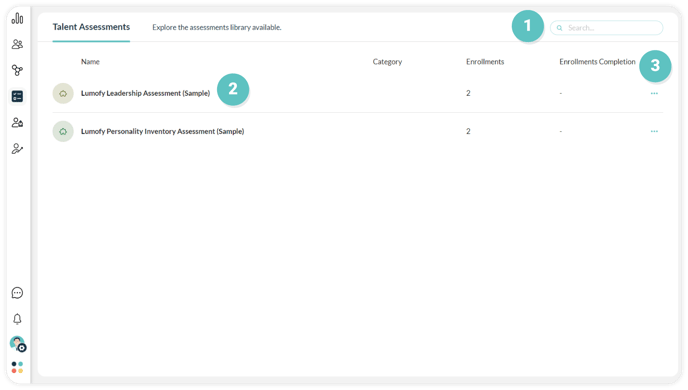**
#### **1. Search Bar**
To search for any required assessment, use the**Search Bar** on the top right corner of the page.
#### **2. Assessment Page**
Click on any assessment to open the assessment page where you can view two tabs, **Item Details,** and **Enrollments**.
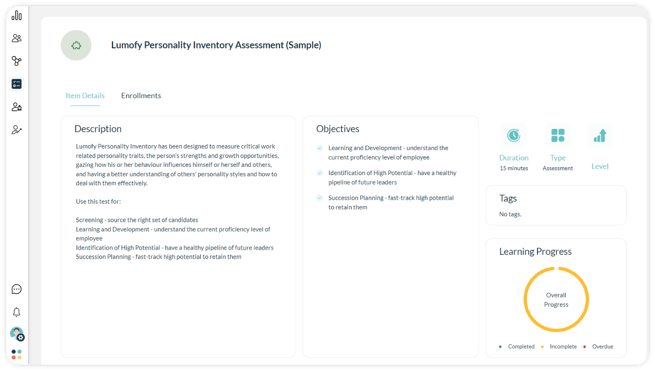
#### **2.1 Item Details**
View the assessment's **Description**, **Objectives, Duration, Type**, **Level**, **Tags**, and **Learning Progress** status (completed, incomplete, or overdue).
#### **2.2 Enrollments**
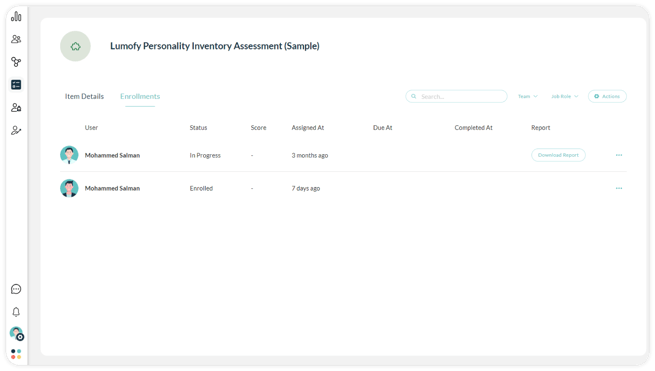
View a list of all users enrolled in this assessment, including **Name, Status, Score, Assigning Date, Due Date, Completion Date,** and **Report**.
1. Use the**Search Bar** to look up enrollments.
2. Filter enrollments using the **Team** and **Job Role** filters.
3. Click **Actions** to perform the following actions:
1. Click**Enroll Users** toenroll one or more users to the assessment.
2. Click**Update Due Date** to change the due date of the assessment.
3. Click  **Export** to download an excel sheet of all enrollments.
4. Click **Download Report** to download the assessment report after completion.
5. Click the **Options Menu** to perform these actions:
1. **View Attempts:** to see a list of all assessments attempts of this user.
2. **Delete:** to remove the user from the enrollments list.
****
**Note**: you can **Allow user to retry the last attempt** from the **View Attempts** popup.
#### 3. Enroll Users
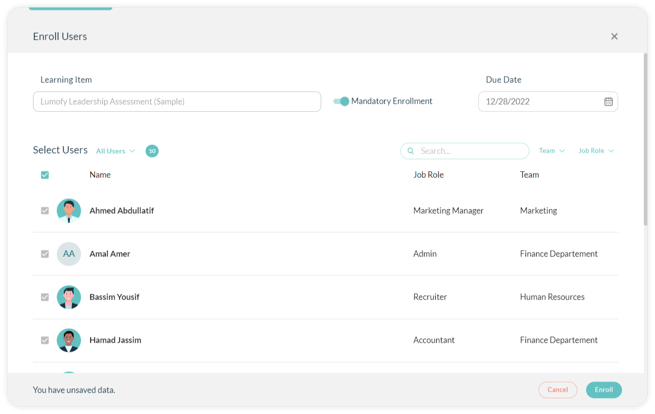
Click on the**Options Menu** next to any assessment to **Enroll Users** following the steps below:
1. Turn on the **Mandatory Enrollment** switch if the assessment is compulsory and turn it off if it’s optional.
2. Select the assessment **Due** **Date** by which the users are required to complete the assessment.
3. Click Select All to enroll all your users to the chosen assessment or select particular users you wish to assign the assessments to from the list by checking the box next to their name.
4. Use the **Search Bar** and enter the name of the user or **Filter** the list of users by **Team** and **Job Role**.
5. Click **Enroll** to complete the enrollment action successfully and for the users to get notified about being assigned to a new assessment.
6. Click **Cancel** to exit the enrolling popup.
- [Getting Started with Lumofy](https://help.lumofy.com/migration/getting-started-with-lumofy?hsLang=en#main-content)
- [Onboarding On Lumofy](https://help.lumofy.com/migration/getting-started-with-lumofy?hsLang=en#onboarding-on-lumofy)
- [How to get help with Lumofy](https://help.lumofy.com/migration/getting-started-with-lumofy?hsLang=en#how-to-get-help-with-lumofy)
- [Lumofy For Admins](https://help.lumofy.com/migration/lumofy-for-admins?hsLang=en#main-content)
- [Admin Navigation Toolbar](https://help.lumofy.com/migration/lumofy-for-admins?hsLang=en#admin-navigation-toolbar)
- [Insights Dashboard](https://help.lumofy.com/migration/lumofy-for-admins?hsLang=en#insights-dashboard)
- [Admin](https://help.lumofy.com/migration/lumofy-for-admins?hsLang=en#admin)
- [Map](https://help.lumofy.com/migration/lumofy-for-admins?hsLang=en#map)
- [Assess](https://help.lumofy.com/migration/lumofy-for-admins?hsLang=en#assess)
- [Author](https://help.lumofy.com/migration/lumofy-for-admins?hsLang=en#author)
- [Disscussions](https://help.lumofy.com/migration/lumofy-for-admins?hsLang=en#disscussions)
- [Notifications](https://help.lumofy.com/migration/lumofy-for-admins?hsLang=en#notifications)
- [Lumofy For Learners](https://help.lumofy.com/migration/lumofy-for-learners?hsLang=en#main-content)
- [Learner Navigation Toolbar](https://help.lumofy.com/migration/lumofy-for-learners?hsLang=en#learner-navigation-toolbar)
- [Dashboard](https://help.lumofy.com/migration/lumofy-for-learners?hsLang=en#dashboard)
- [Items Library](https://help.lumofy.com/migration/lumofy-for-learners?hsLang=en#items-library)
- [Paths Library](https://help.lumofy.com/migration/lumofy-for-learners?hsLang=en#paths-library)
- [Assessments Library](https://help.lumofy.com/migration/lumofy-for-learners?hsLang=en#assessments-library)
- [Leaderboard](https://help.lumofy.com/migration/lumofy-for-learners?hsLang=en#leaderboard)
- [Discussions](https://help.lumofy.com/migration/lumofy-for-learners?hsLang=en#discussions)
- [Notifications](https://help.lumofy.com/migration/lumofy-for-learners?hsLang=en#notifications)
- [Settings](https://help.lumofy.com/migration/lumofy-for-learners?hsLang=en#settings)
- [Profile](https://help.lumofy.com/migration/lumofy-for-learners?hsLang=en#profile)
- Home
- Products
- Pricing
- Blog
- Company
[](http://www.lumofy.com)
Help Center
Copyright © 2026, Lumofy