---
title: Managing Learning Paths
description: If you would like to create a new learning path, click on Author in the navigation toolbar. Then click on Learning Paths. Once you are directed to the learning items page, you will be able to view a l
---
[Skip to content](https://help.lumofy.com/migration/managing-learning-paths#main-content)
English
Show submenu for translations
![Logo\_Lumofy\_EN\_Main\_Secondary\_Horizontal.svg\]](https://help.lumofy.com/hubfs/Logo_Lumofy_EN_Main_Secondary_Horizontal.svg)
- Home
- Products
- Pricing
- Blog
- Company
Open main navigation
Close main navigation
- Home
- Products
- Pricing
- Blog
- Company
- English
Show submenu for translations
- Go to lumofy.ai
Go to lumofy.ai
Hello. How can we help you?
- There are no suggestions because the search field is empty.
1. [Help Center](https://help.lumofy.com/migration?hsLang=en)
2. [Lumofy For Admins](https://help.lumofy.com/migration/lumofy-for-admins?hsLang=en)
3. [Author](https://help.lumofy.com/migration/lumofy-for-admins?hsLang=en#author)
# Managing Learning Paths
### Managing Learning Paths
If you would like to create a new learning path, click on **Author** in the navigation toolbar. Then click on **Learning Paths**.
Once you are directed to the learning items page, you will be able to view a list of all the learning paths available to you and your users, Their **Names,** **Contents (number of learning items and sub-paths under each learning path), Enrollments,** and **Enrollments Completion.**
**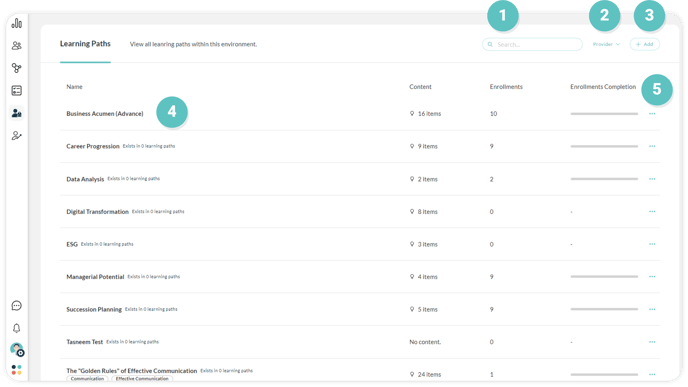**
#### **1. Search Bar**
To search for any required learning path, use the**Search Bar** at the top of the page.
#### **2. Filtering**
Click on the **Provider** dropdown menu and select if you require to show all learning paths or only the learning paths provided by your present provider or the customized learning paths.
#### **3. Adding A New Learning Path**
Click on**Add** to create a new Learning Path and follow the steps below to perform this action successfully:
1. Click on **Create a New Learning Path** to name the path you are creating.
2. Check the box of **Items must be taken in order** if you prefer the user to take the learning items in consecutive order.
3. Select the difficulty **Level** of this path from the dropdown menu (Basic, Intermediate, or Advanced).
4. Enter the path **Duration** you wish the users to spend on this path (in minutes).
5. Enter a **Description** of this path.
6. Click on **Add** to write the outcomes achieved by completing this path. If you would like to **Remove** an outcome you added, click on the trash icon.
7. Click **Create** to complete the process successfully.
8. Click **Cancel** to exit the tab.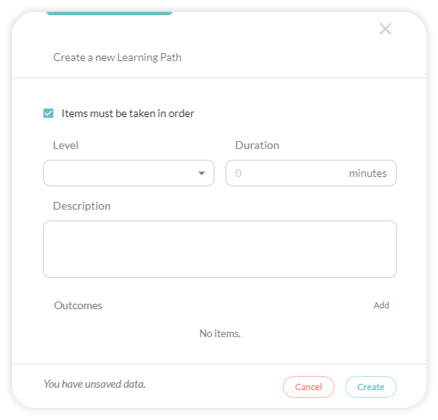
#### **4. Learning Path Page**
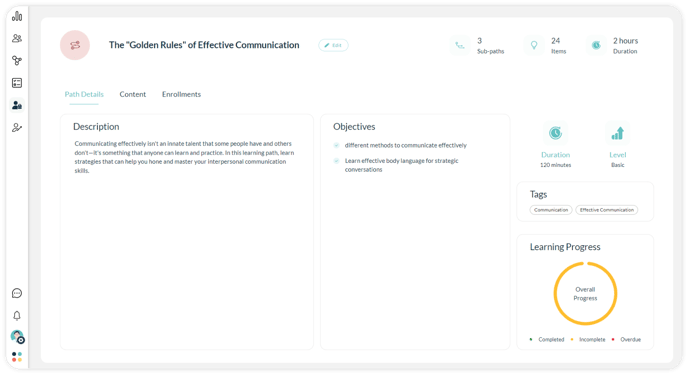
Click on any path to open the learning path page where you can **Edit** the path, view its number of sub-paths and items and its duration in addition to view three tabs, **Path Details, Content** and **Enrollments**.
#### **4.1 Edit Learning Path**
Click**Edit** to change the path's **Duration, Level, Description, and Outcomes**. Finally, click **Update** to reflect the changes you made or click **Cancel** to discard changes and exit the tab.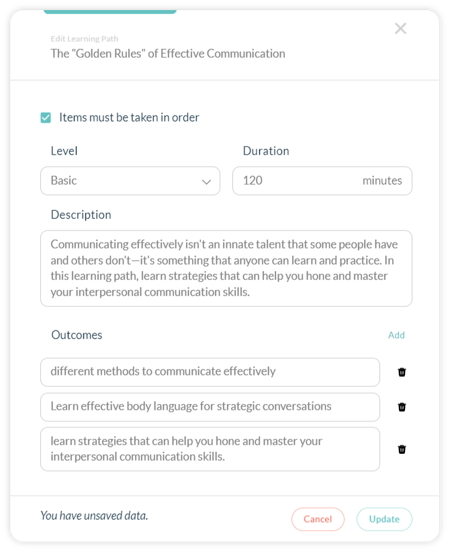
#### **4.2 Path Details**
View the path's **Description**, **Objectives, Duration**, **Level**, **Tags**, and **Learning Progress** status (completed, incomplete, or overdue).
#### **4.3 Content**
View a list of all learning items and sub-paths under this learning path; their **Type, Duration, Level, and Progress Precentage.** Click **View Details** to open the item/sub-path page and know more about it. you'll also be able to:
1. Click **Remove** to delete an item/sub-path from the content list by hovering your cursor over the item/sub-path you wish to remove**.**
2. Change an item/sub-path's order in the content list by hovering over the item/sub-path, your cursor will change to the **Drag and Drop** cursor, then you can drag the item/sub-path up or down the list to your desired position. Click **Update** to reflect your changes or wait for 5 seconds for the changes to be automatically saved.
3. Click **Add** to include additional learning items, quizzes or sub-paths to the path. You can either **Add** an item from the existing learning library or **Create** a new learning item.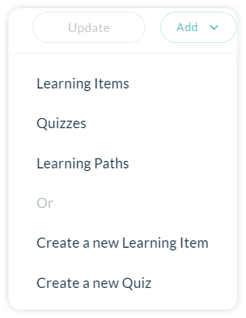
1. **To Add an Existing Item:**
1. Choose the type of item you would like to choose from the drop-down menu (Learning items, Quizzes or Sub-paths).
2. Use the**Search Bar** to look for a specific item or the **Category** and **Competency** filters.
3. Check the box next to the item you would like to add.
4. Click **Add** to reflect the changes you made.
5. Click **Cancel** to discard changes and exit the tab.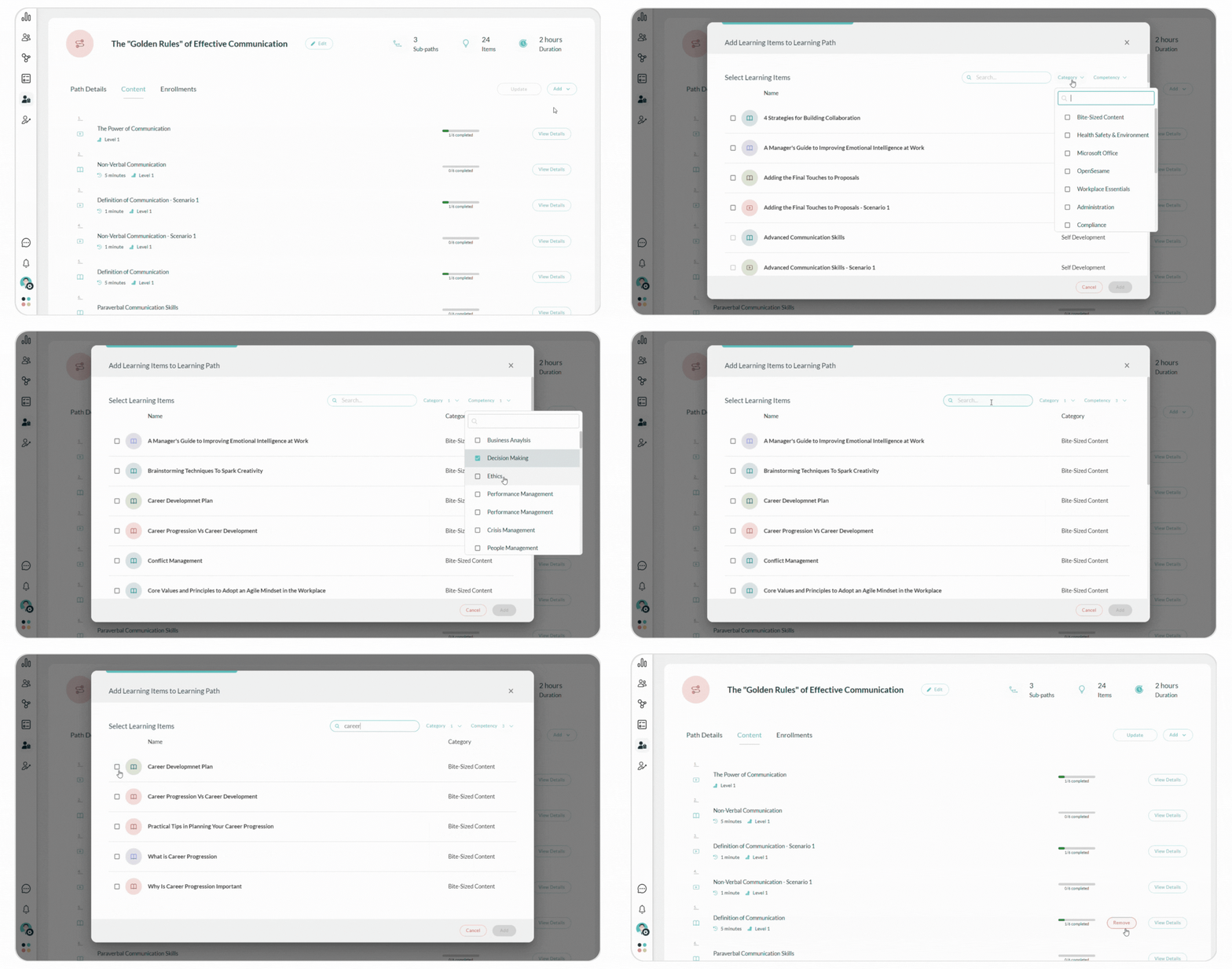
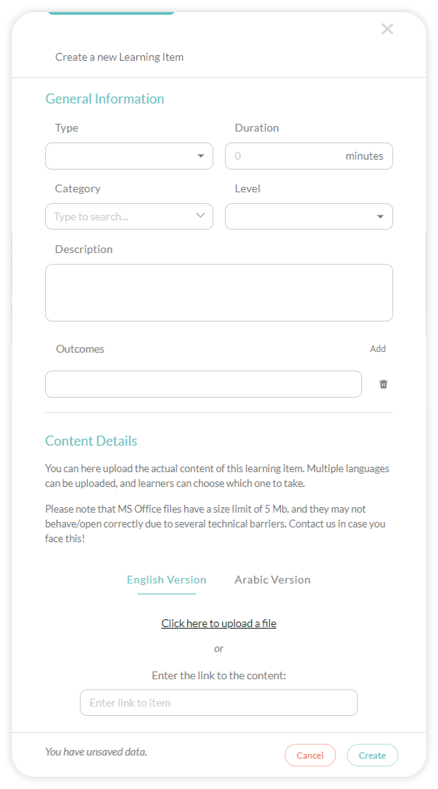
2. **To Create a New Item:**
1. Choose the type of item you would like to create from the drop-down menu (Learning Item or Quizz).
2. Add the item details (Name,Type, Duration, etc.) or the quiz details (Name, description, passing score, etc.).
3. Click **Create** or **Save** to reflect the changes you made or **Cancel** to discard them.
#### **4.4 Enrollments**
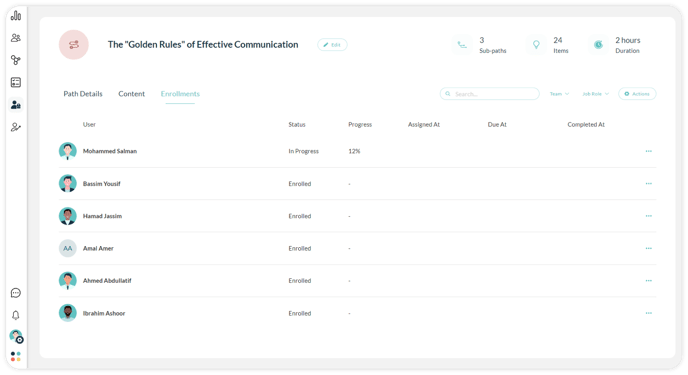
View a list of all users enrolled in this path, including **Name, Status, Progress, Assigning Date, Due date,** and **Completion Date.**
1. Use the**Search Bar** to look up enrollments.
2. Filter enrollments using the **Team** and **Job Role** filters.
3. Click **Actions** to perform the following actions:
1. Click**Enroll Users** toenroll one or more users to the path.
2. Click**Update Due Date** to change the due date of the path.
3. Click  **Export** to download an excel sheet of all enrollments.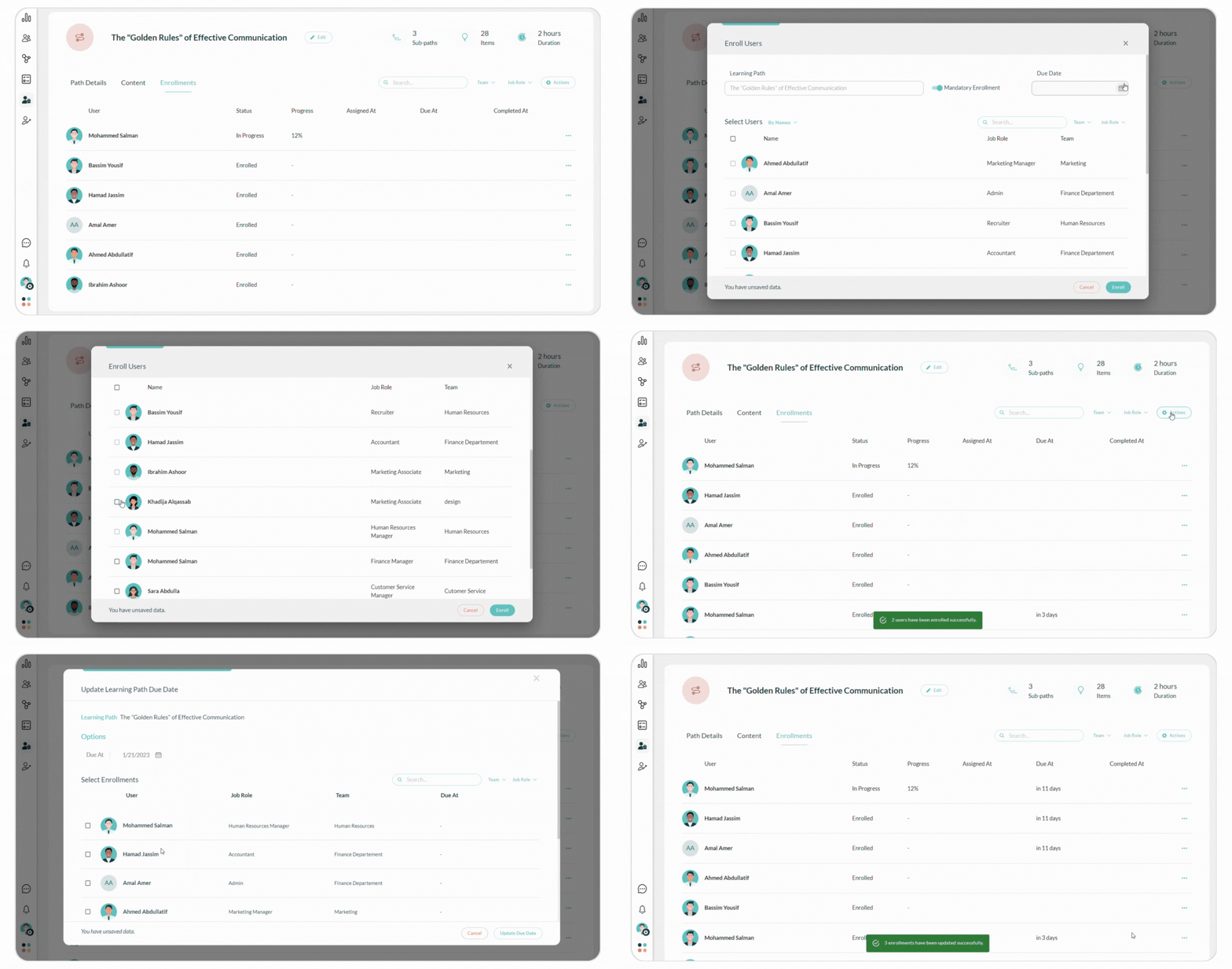
4. Click on any enrollment to view the individual user information including their status relating to the path, progress percentage, the date the path was assigned, the due date of completing each path, and the date the path was completed by the user.
5. Click on the**Options Menu** on the right of each enrollment to **Delete** the user enrollment from this item.
****
#### **5. Performing Additional Actions**
Click on the **Options Menu** on the right of each Learning Path to:
1. **Preview**: preview the learning item as a learner.
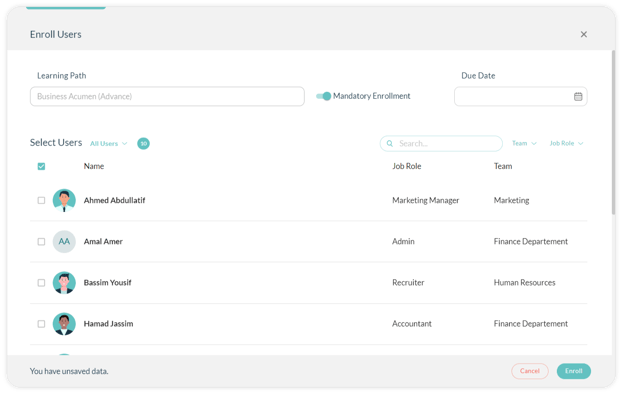
2. **Enroll Users:** assign users to this learning path following the steps below:
1. Turn on the **Mandatory Enrollment** switch if the item is compulsory and turn it off if it’s optional.
2. Select the item **Due** **Date** by which the users are required to complete the item.
3. Click Select All to enroll all your users to the chosen item or select particular users you wish to assign the items to from the list by checking the box next to their name.
4. Use the **Search Bar** and enter the name of the user or **Filter** the list of users by **Team** and **Job Role**.
5. Click **Enroll** to complete the enrollment action successfully and for the users to get notified about being assigned to a new item.
6. Click **Cancel** to exit the enrolling popup.
- [Getting Started with Lumofy](https://help.lumofy.com/migration/getting-started-with-lumofy?hsLang=en#main-content)
- [Onboarding On Lumofy](https://help.lumofy.com/migration/getting-started-with-lumofy?hsLang=en#onboarding-on-lumofy)
- [How to get help with Lumofy](https://help.lumofy.com/migration/getting-started-with-lumofy?hsLang=en#how-to-get-help-with-lumofy)
- [Lumofy For Admins](https://help.lumofy.com/migration/lumofy-for-admins?hsLang=en#main-content)
- [Admin Navigation Toolbar](https://help.lumofy.com/migration/lumofy-for-admins?hsLang=en#admin-navigation-toolbar)
- [Insights Dashboard](https://help.lumofy.com/migration/lumofy-for-admins?hsLang=en#insights-dashboard)
- [Admin](https://help.lumofy.com/migration/lumofy-for-admins?hsLang=en#admin)
- [Map](https://help.lumofy.com/migration/lumofy-for-admins?hsLang=en#map)
- [Assess](https://help.lumofy.com/migration/lumofy-for-admins?hsLang=en#assess)
- [Author](https://help.lumofy.com/migration/lumofy-for-admins?hsLang=en#author)
- [Disscussions](https://help.lumofy.com/migration/lumofy-for-admins?hsLang=en#disscussions)
- [Notifications](https://help.lumofy.com/migration/lumofy-for-admins?hsLang=en#notifications)
- [Lumofy For Learners](https://help.lumofy.com/migration/lumofy-for-learners?hsLang=en#main-content)
- [Learner Navigation Toolbar](https://help.lumofy.com/migration/lumofy-for-learners?hsLang=en#learner-navigation-toolbar)
- [Dashboard](https://help.lumofy.com/migration/lumofy-for-learners?hsLang=en#dashboard)
- [Items Library](https://help.lumofy.com/migration/lumofy-for-learners?hsLang=en#items-library)
- [Paths Library](https://help.lumofy.com/migration/lumofy-for-learners?hsLang=en#paths-library)
- [Assessments Library](https://help.lumofy.com/migration/lumofy-for-learners?hsLang=en#assessments-library)
- [Leaderboard](https://help.lumofy.com/migration/lumofy-for-learners?hsLang=en#leaderboard)
- [Discussions](https://help.lumofy.com/migration/lumofy-for-learners?hsLang=en#discussions)
- [Notifications](https://help.lumofy.com/migration/lumofy-for-learners?hsLang=en#notifications)
- [Settings](https://help.lumofy.com/migration/lumofy-for-learners?hsLang=en#settings)
- [Profile](https://help.lumofy.com/migration/lumofy-for-learners?hsLang=en#profile)
- Home
- Products
- Pricing
- Blog
- Company
[](http://www.lumofy.com)
Help Center
Copyright © 2026, Lumofy