---
title: Map Competencies to Different Job Roles/Teams
description: Access a dashboard presenting your organization’s various departments and the job roles pertaining to each department. Each job role’s competencies will be displayed alongside the percentage of compl
---
[Skip to content](https://help.lumofy.com/migration/map-competencies-to-different-job-roles/teams#main-content)
English
Show submenu for translations
![Logo\_Lumofy\_EN\_Main\_Secondary\_Horizontal.svg\]](https://help.lumofy.com/hubfs/Logo_Lumofy_EN_Main_Secondary_Horizontal.svg)
- Home
- Products
- Pricing
- Blog
- Company
Open main navigation
Close main navigation
- Home
- Products
- Pricing
- Blog
- Company
- English
Show submenu for translations
- Go to lumofy.ai
Go to lumofy.ai
Hello. How can we help you?
- There are no suggestions because the search field is empty.
1. [Help Center](https://help.lumofy.com/migration?hsLang=en)
2. [Lumofy For Admins](https://help.lumofy.com/migration/lumofy-for-admins?hsLang=en)
3. [Map](https://help.lumofy.com/migration/lumofy-for-admins?hsLang=en#map)
# Map Competencies to Different Job Roles/Teams
### **Competencies Overview**
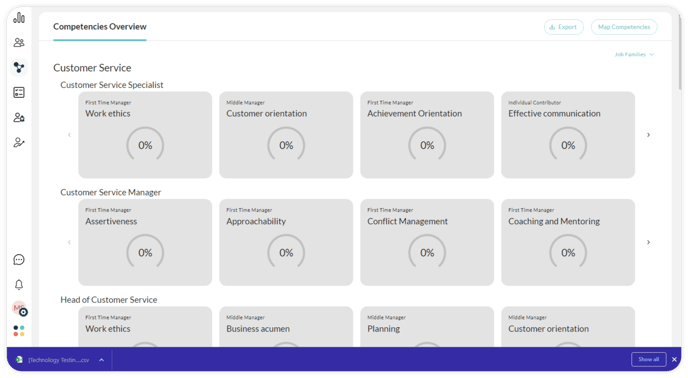
Access a dashboard presenting your organization’s various departments and the job roles pertaining to each department.
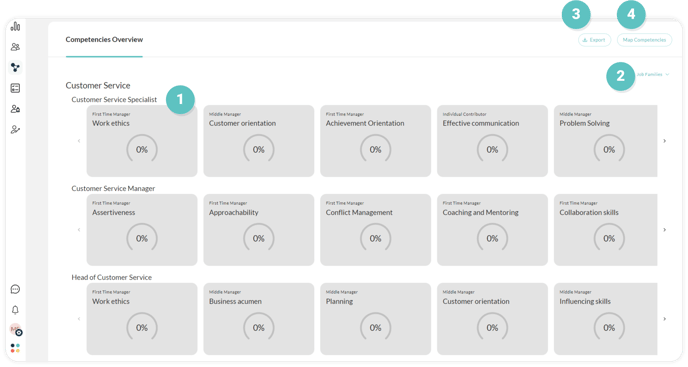
#### 1. Competency Box
1. Each job role’s competencies will be displayed alongside the percentage of completed material.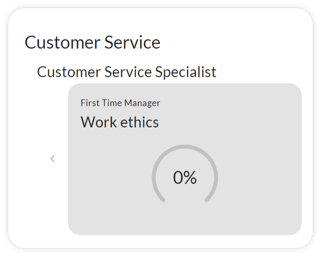
2. Click on the chart to view the users’ Name, Team, and Pathway Progress pertaining to the competency and its respective material.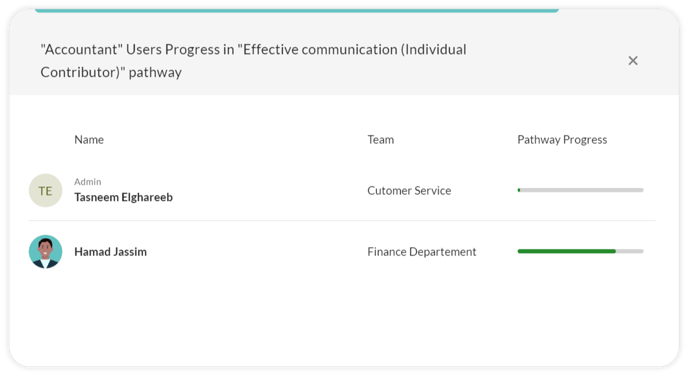
#### 2. Filters
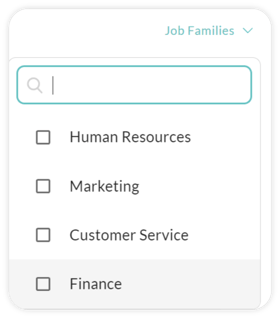
To filter based on departments, click on **Job Families** (on the top right), enter the name of the department manually, or select the department required for the requested data to be displayed.
#### 3. Export
Click on  **Export** on the upper right to download an Excel spreadsheet detailing the Path Progress made in relation to each user, job role, job family, and its associated competencies.
#### 4. Map Competencies
Access a repository of competencies where you can add your organization’s competency framework. To start mapping competencies, click on**Map** in your navigation toolbar and select **Map Competencies**.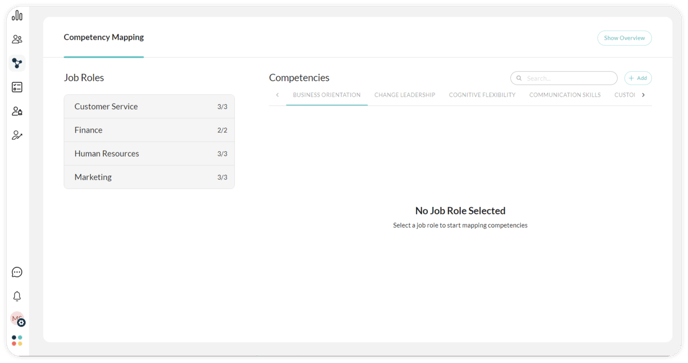
#### **4.1 Job Roles**
1. Click on each department to display the job roles it encompasses. The total number of roles will be reflected on the right of each department.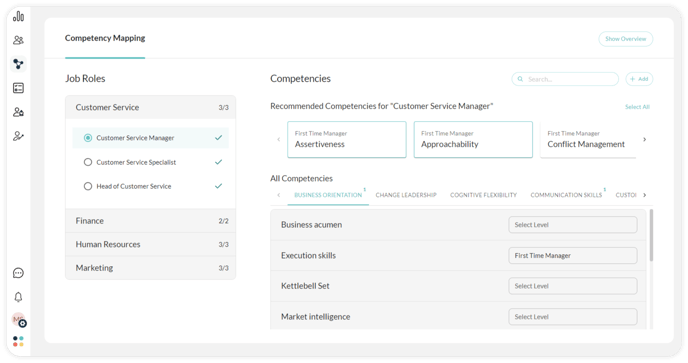
1. From the onset, a list of recommended competencies has been suggested to be included in each job role. To add these, click **Select All** to implement them for your organization.
2. Alternatively, use the  **Search Bar** to manually search for any competency you require.
3. Once a competency has been selected in each individual cluster, you will notice an exponential figure will be displayed to indicate the number of selections that have been made.

4. Click on each individual job role to begin mapping its associated competencies.
5. To undo all selections, click on **Remove All** to discard all changes made.
6. To manually select the competencies the job role requires, scroll through **All Competencies.** To perform this action successfully, follow the steps below:
1. Select the **Cluster** the competency belongs to.
2. Click on the selected competency to read a brief description of the competency you are selecting and the associated Behavior Indicators throughout various levels of management.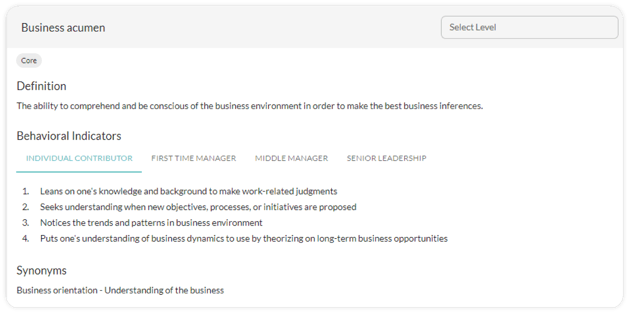
3. Select the job role level the competency is fulfilling from the drop-down menu.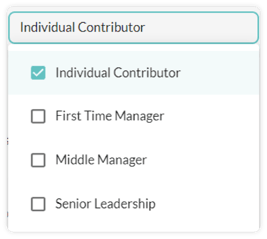
**Note:** When a new user is assigned to a job role with set competencies, they will automatically be assigned the associated competencies with that job role.
#### **4.2 Add a New Competency**
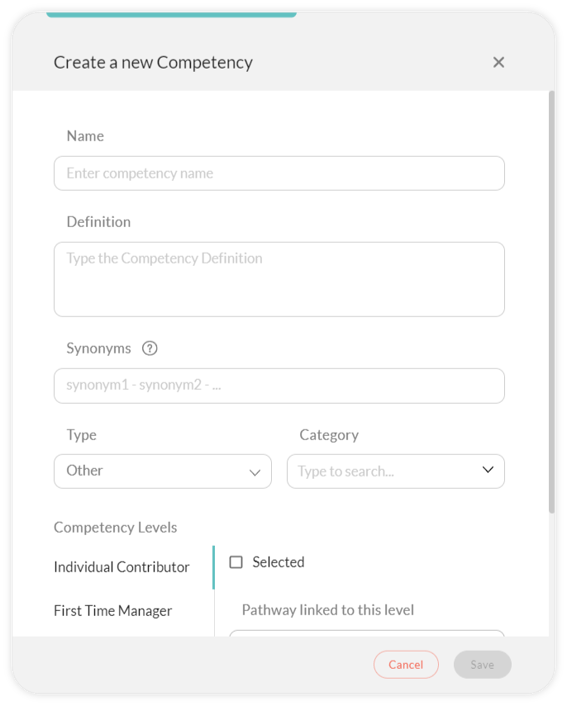
1. Click on  **Add** to include any competencies you require that are not available in the Lumofy repository. To perform this action successfully, follow the steps below:
1. Enter the **Name** of the competency you would like to add to the platform.
2. Provide a brief **Definition** of the competency.
3. Provide a few **Synonyms** toallow for a substitute to simplify during the search**.**
4. Select the **Type** (Core, Functional, Cross-Functional, Other) and **Category** the competency belongs to.
5. Select the appropriate **Competency Level** and confirm by clicking on **Selected**.
6. Confirm the **Pathway Linked to this Level** by selecting the appropriate choice from the drop-down menu.
7. Add the **Behavior Indicators** that satisfy the competency at the selected Competency Level to provide an understanding of the standards required.
2. Click on **Save** to enter the competency into the repository for you to be able to select it from the main page.
**Note:** When a Job Role is assigned with a set of competencies, pathways associated with those competencies will automatically be assigned to users with that Job Role.
- [Getting Started with Lumofy](https://help.lumofy.com/migration/getting-started-with-lumofy?hsLang=en#main-content)
- [Onboarding On Lumofy](https://help.lumofy.com/migration/getting-started-with-lumofy?hsLang=en#onboarding-on-lumofy)
- [How to get help with Lumofy](https://help.lumofy.com/migration/getting-started-with-lumofy?hsLang=en#how-to-get-help-with-lumofy)
- [Lumofy For Admins](https://help.lumofy.com/migration/lumofy-for-admins?hsLang=en#main-content)
- [Admin Navigation Toolbar](https://help.lumofy.com/migration/lumofy-for-admins?hsLang=en#admin-navigation-toolbar)
- [Insights Dashboard](https://help.lumofy.com/migration/lumofy-for-admins?hsLang=en#insights-dashboard)
- [Admin](https://help.lumofy.com/migration/lumofy-for-admins?hsLang=en#admin)
- [Map](https://help.lumofy.com/migration/lumofy-for-admins?hsLang=en#map)
- [Assess](https://help.lumofy.com/migration/lumofy-for-admins?hsLang=en#assess)
- [Author](https://help.lumofy.com/migration/lumofy-for-admins?hsLang=en#author)
- [Disscussions](https://help.lumofy.com/migration/lumofy-for-admins?hsLang=en#disscussions)
- [Notifications](https://help.lumofy.com/migration/lumofy-for-admins?hsLang=en#notifications)
- [Lumofy For Learners](https://help.lumofy.com/migration/lumofy-for-learners?hsLang=en#main-content)
- [Learner Navigation Toolbar](https://help.lumofy.com/migration/lumofy-for-learners?hsLang=en#learner-navigation-toolbar)
- [Dashboard](https://help.lumofy.com/migration/lumofy-for-learners?hsLang=en#dashboard)
- [Items Library](https://help.lumofy.com/migration/lumofy-for-learners?hsLang=en#items-library)
- [Paths Library](https://help.lumofy.com/migration/lumofy-for-learners?hsLang=en#paths-library)
- [Assessments Library](https://help.lumofy.com/migration/lumofy-for-learners?hsLang=en#assessments-library)
- [Leaderboard](https://help.lumofy.com/migration/lumofy-for-learners?hsLang=en#leaderboard)
- [Discussions](https://help.lumofy.com/migration/lumofy-for-learners?hsLang=en#discussions)
- [Notifications](https://help.lumofy.com/migration/lumofy-for-learners?hsLang=en#notifications)
- [Settings](https://help.lumofy.com/migration/lumofy-for-learners?hsLang=en#settings)
- [Profile](https://help.lumofy.com/migration/lumofy-for-learners?hsLang=en#profile)
- Home
- Products
- Pricing
- Blog
- Company
[](http://www.lumofy.com)
Help Center
Copyright © 2026, Lumofy