---
title: Scheduling Live Sessions
description: If you would like to create a new live session, click on Author in the navigation toolbar. Then click on Live Sessions. Once you are directed to the Live sessions page, you will be able to view a list
---
[Skip to content](https://help.lumofy.com/migration/scheduling-live-sessions-if-you-would-like-to-create-a-new-learning-session-click-on-the-following-icon-in-the-navigation-toolbar.-then-click-on-the-li-1670773492775#main-content)
English
Show submenu for translations
![Logo\_Lumofy\_EN\_Main\_Secondary\_Horizontal.svg\]](https://help.lumofy.com/hubfs/Logo_Lumofy_EN_Main_Secondary_Horizontal.svg)
- Home
- Products
- Pricing
- Blog
- Company
Open main navigation
Close main navigation
- Home
- Products
- Pricing
- Blog
- Company
- English
Show submenu for translations
- Go to lumofy.ai
Go to lumofy.ai
Hello. How can we help you?
- There are no suggestions because the search field is empty.
1. [Help Center](https://help.lumofy.com/migration?hsLang=en)
2. [Lumofy For Admins](https://help.lumofy.com/migration/lumofy-for-admins?hsLang=en)
3. [Author](https://help.lumofy.com/migration/lumofy-for-admins?hsLang=en#author)
# Scheduling Live Sessions
### Scheduling Live Sessions
If you would like to create a new live session, click on **Author** in the navigation toolbar. Then click on **Live Sessions**.
Once you are directed to the Live sessions page, you will be able to view a list of all the sessions conducted previously; Their **Names,** **Categories, Enrollments,** and **Enrollments Completion.**
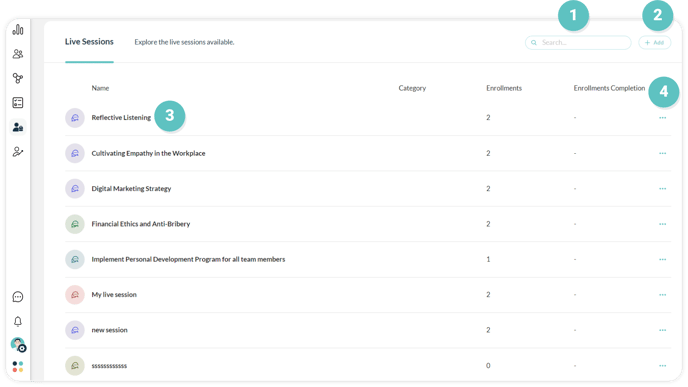
#### **1. Search Bar**
To search for any required live session path, use the**Search Bar** at the top right of the page.
#### **2. Adding A New Live Session**
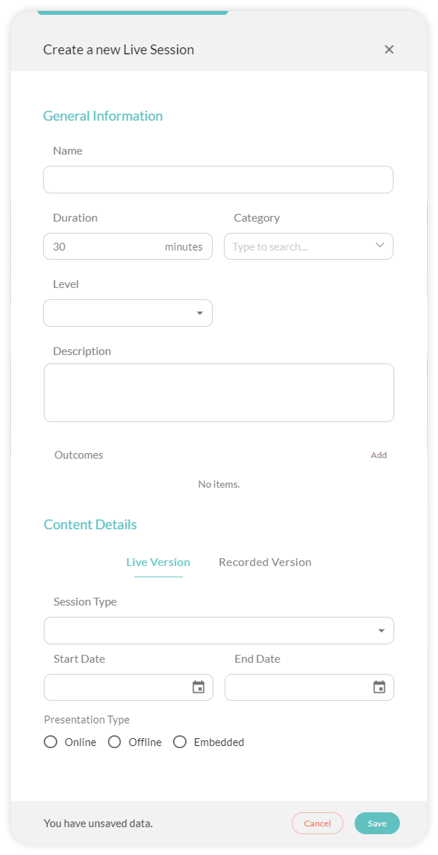
Click on **Add** to schedule a new Live Session following the step below:
1. **General Information**
1. Enter the **Name** of the Live Session you will be conducting.
2. Enter the **Duration** of the session in minutes.
3. Choose the **Category** of the session from the drop-down menu (compliance, leadership, financials, etc.).
4. Select the live session **Difficulty Level** (Basic, Intermediate, or Advanced).
5. Enter the **Description** of the Live Session.
6. Click on **Add** to write the outcomes achieved by completing this session. If you would like to **Remove** an outcome, click on.
2. **Content Details**
1. Choose whether the session you would like to add is a **Live version** or **Recorded.**
2. Select the session **Type** from the drop-down menu (course, program, certification, qualification, etc.)
3. If you chose your session to be a **Live version** you would have to:
1. Specify the **Start Date** and **Time**. As well as the **End Date** and time of the session.
2. Choose the **Presentation Type** of the session which will be **Online**, **Offline,** or **Embedded** within the platform.
1. If you chose the **Online** option, you would have to input the link to the meeting you will be hosting on another platform I.E Zoom, Teams, etc.
2. If you chose the **Offline** option, you will have to input the address to the physical location where you will host your meeting.
3. If you chose the **Embedded** option, a link with be autogenerated once you create the Live Session and you will be directed to another tab that includes the session details. To enter the session successfully, click **Open**.
4. If you chose your session to be a **Recorded Version,** click on **Click here to upload** for you to upload the recorded video or enter the link of the recorded session.
5. Click on **Save** for users to be notified of the Live Session you have now created.
6. Click **Cancel,** to exit the tab.
#### **3. Live Session Page**
Click on any session to open the live session page where you can **Open**, **Edit**, and view its details under two tabs, **Item Details**, and **Enrollments**.
#### **3.1 Open Live Session**
Click **Open** to join the live session. A popup will appear where you can hear and see the presenter. Join the discussion when needed and view a list of people who are included in this session. You can also adjust the room settings by clicking on the gear icon.
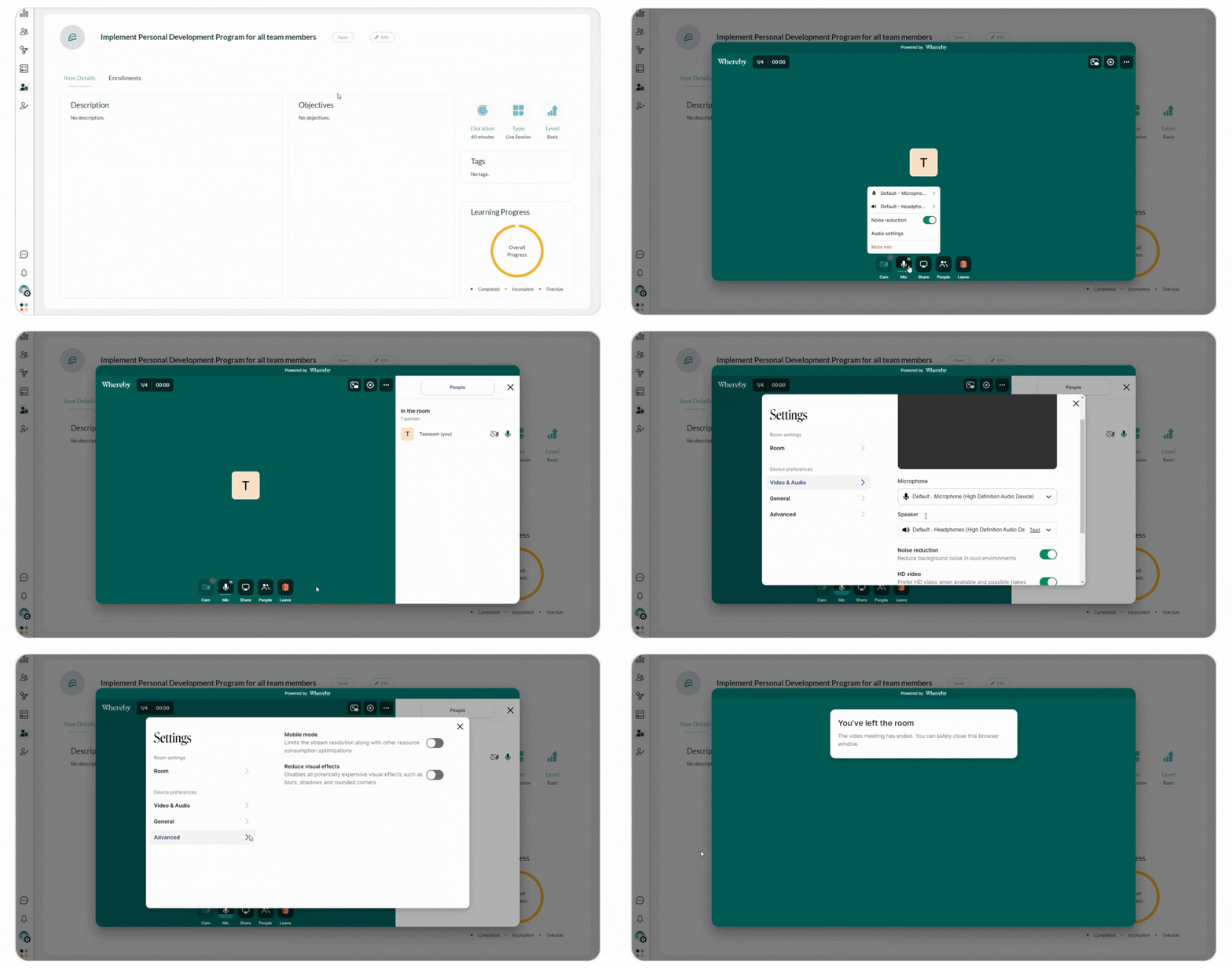
**Note:** Make sure yougrant your browser permission to access your microphone and camera to be able to be heard and seen by other people in the room.
#### **3.2 Edit Live Session**
Click**Edit** to change the session's **Name,** **Duration, Category, Level, Description, Outcomes, and Content Details**. Finally, click **Update** to reflect the changes you made, or click **Cancel** to discard changes and exit the tab.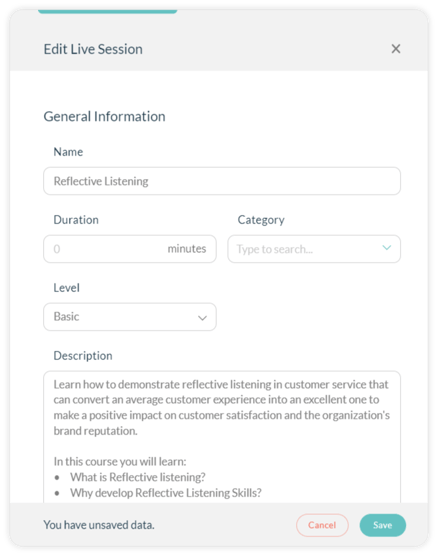
#### **3.3 Item Details**
View the session's **Description**, **Objectives, Type**, **Level**, **Tags**, and **Learning Progress** status (completed, incomplete, or overdue).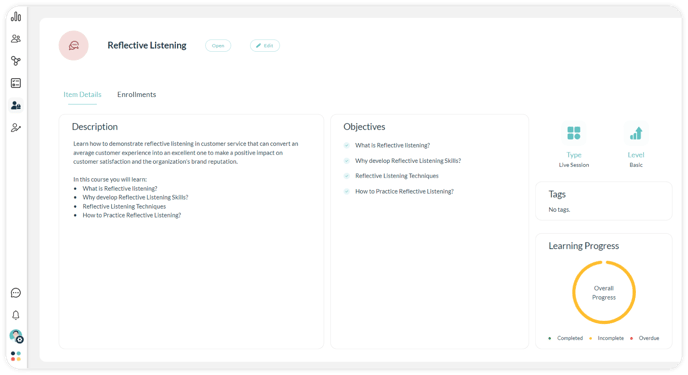
#### **3.4 Enrollments**
View a list of all users enrolled in this session, including **Name, Status, Score, Assigned At, Due Date,** and **Completed At.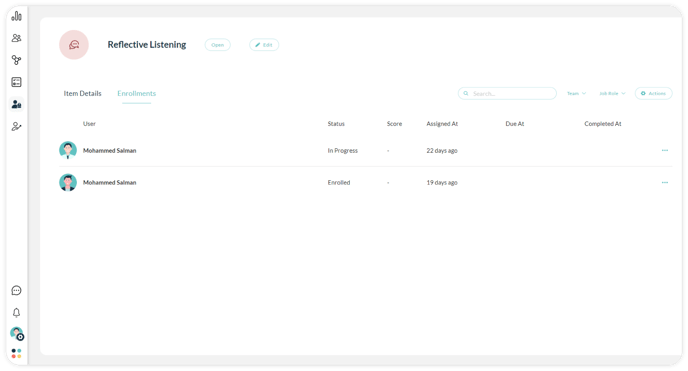**
#### **4. Performing Additional Actions**
Click on the **Options Menu** on the right of each live session to:
1. **Preview**: preview the live session as a learner.
2. **Edit:** revisethe live session's information in terms of **Name**, **Type Category**, **Duration,** etc. then click **Save** to reflect the changes you made, or click **Cancel** to discard them and exit the tab.
3. **Enroll Users:** assign users to this live session following the steps below:
1. Turn on the **Mandatory Enrollment** switch if the session is compulsory and turn it off if it’s optional.
2. Select the session **Due** **Date** by which the users are required to complete the session.
3. Click **Select All** to enroll all your users to the chosen session or select particular users you wish to assign the sessions to from the list by checking the box next to their name.
4. Use the **Search Bar** and enter the name of the user or **Filter** the list of users by **Team** and **Job Role**.
5. Click **Enroll** to complete the enrollment action successfully and for the users to get notified about being assigned to a new session.
6. Click **Cancel** to exit the enrolling popup.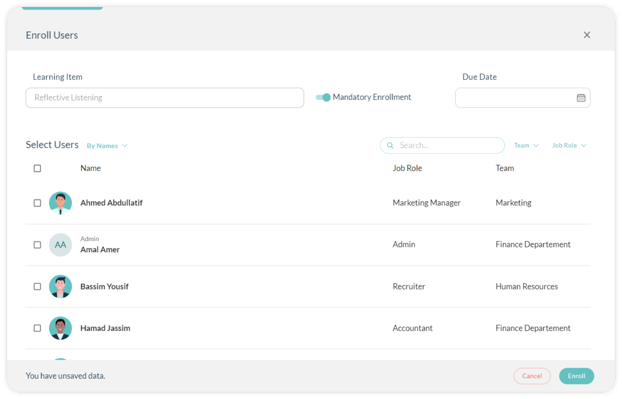
- [Getting Started with Lumofy](https://help.lumofy.com/migration/getting-started-with-lumofy?hsLang=en#main-content)
- [Onboarding On Lumofy](https://help.lumofy.com/migration/getting-started-with-lumofy?hsLang=en#onboarding-on-lumofy)
- [How to get help with Lumofy](https://help.lumofy.com/migration/getting-started-with-lumofy?hsLang=en#how-to-get-help-with-lumofy)
- [Lumofy For Admins](https://help.lumofy.com/migration/lumofy-for-admins?hsLang=en#main-content)
- [Admin Navigation Toolbar](https://help.lumofy.com/migration/lumofy-for-admins?hsLang=en#admin-navigation-toolbar)
- [Insights Dashboard](https://help.lumofy.com/migration/lumofy-for-admins?hsLang=en#insights-dashboard)
- [Admin](https://help.lumofy.com/migration/lumofy-for-admins?hsLang=en#admin)
- [Map](https://help.lumofy.com/migration/lumofy-for-admins?hsLang=en#map)
- [Assess](https://help.lumofy.com/migration/lumofy-for-admins?hsLang=en#assess)
- [Author](https://help.lumofy.com/migration/lumofy-for-admins?hsLang=en#author)
- [Disscussions](https://help.lumofy.com/migration/lumofy-for-admins?hsLang=en#disscussions)
- [Notifications](https://help.lumofy.com/migration/lumofy-for-admins?hsLang=en#notifications)
- [Lumofy For Learners](https://help.lumofy.com/migration/lumofy-for-learners?hsLang=en#main-content)
- [Learner Navigation Toolbar](https://help.lumofy.com/migration/lumofy-for-learners?hsLang=en#learner-navigation-toolbar)
- [Dashboard](https://help.lumofy.com/migration/lumofy-for-learners?hsLang=en#dashboard)
- [Items Library](https://help.lumofy.com/migration/lumofy-for-learners?hsLang=en#items-library)
- [Paths Library](https://help.lumofy.com/migration/lumofy-for-learners?hsLang=en#paths-library)
- [Assessments Library](https://help.lumofy.com/migration/lumofy-for-learners?hsLang=en#assessments-library)
- [Leaderboard](https://help.lumofy.com/migration/lumofy-for-learners?hsLang=en#leaderboard)
- [Discussions](https://help.lumofy.com/migration/lumofy-for-learners?hsLang=en#discussions)
- [Notifications](https://help.lumofy.com/migration/lumofy-for-learners?hsLang=en#notifications)
- [Settings](https://help.lumofy.com/migration/lumofy-for-learners?hsLang=en#settings)
- [Profile](https://help.lumofy.com/migration/lumofy-for-learners?hsLang=en#profile)
- Home
- Products
- Pricing
- Blog
- Company
[](http://www.lumofy.com)
Help Center
Copyright © 2026, Lumofy